
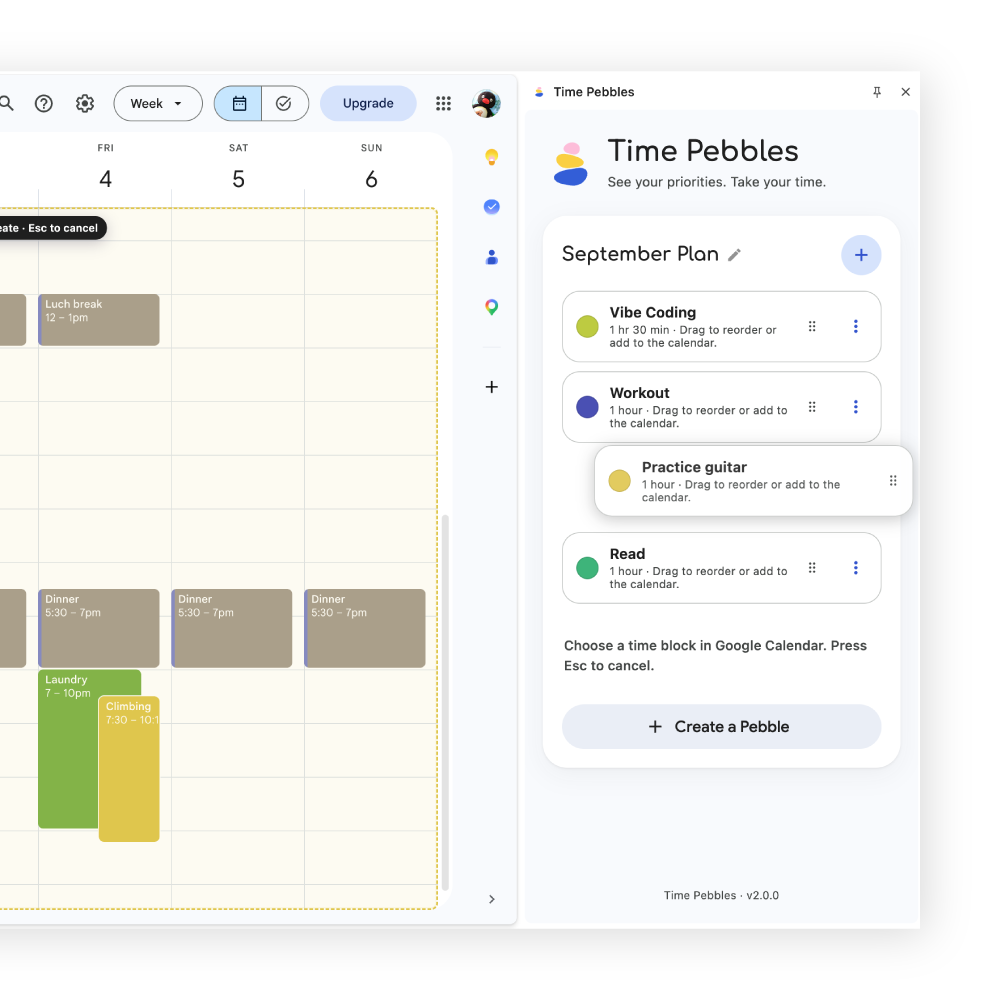
Keep your priorities visible—not buried in clutter.
Keep the things you want to return to in a focused side panel, so they don’t get lost among a crowded calendar or buried in another to-do list.
Time Pebbles makes Google Calendar a more powerful time-management tool.
For Google Calendar in Chrome Designed for Week view
Keep the things you want to return to in a focused side panel, so they don’t get lost among a crowded calendar or buried in another to-do list.
Want to practice guitar every day, but not every day at 7 p.m.? Save “Practice guitar” once, then place a session when your day makes room for it. Each placement becomes a normal Google Calendar event—without pre-filling your future with rigid recurring sessions.
Why I made Time Pebbles
I wanted to practice guitar every day—but not necessarily from 2:00 to 3:00 every day. Google Calendar works well for recurring meetings, but less so for spontaneous routines. When my calendar was filled with fixed sessions, I felt less motivated before I even started.
Time Pebbles keeps the intention visible without locking it to a fixed time.
How it works
Enough structure to turn an intention into action, without deciding every detail too early.
Give an activity a name, duration, and one of your Google Calendar colors. You can change any of them later.
Maintain a small, reorderable list of what matters now.
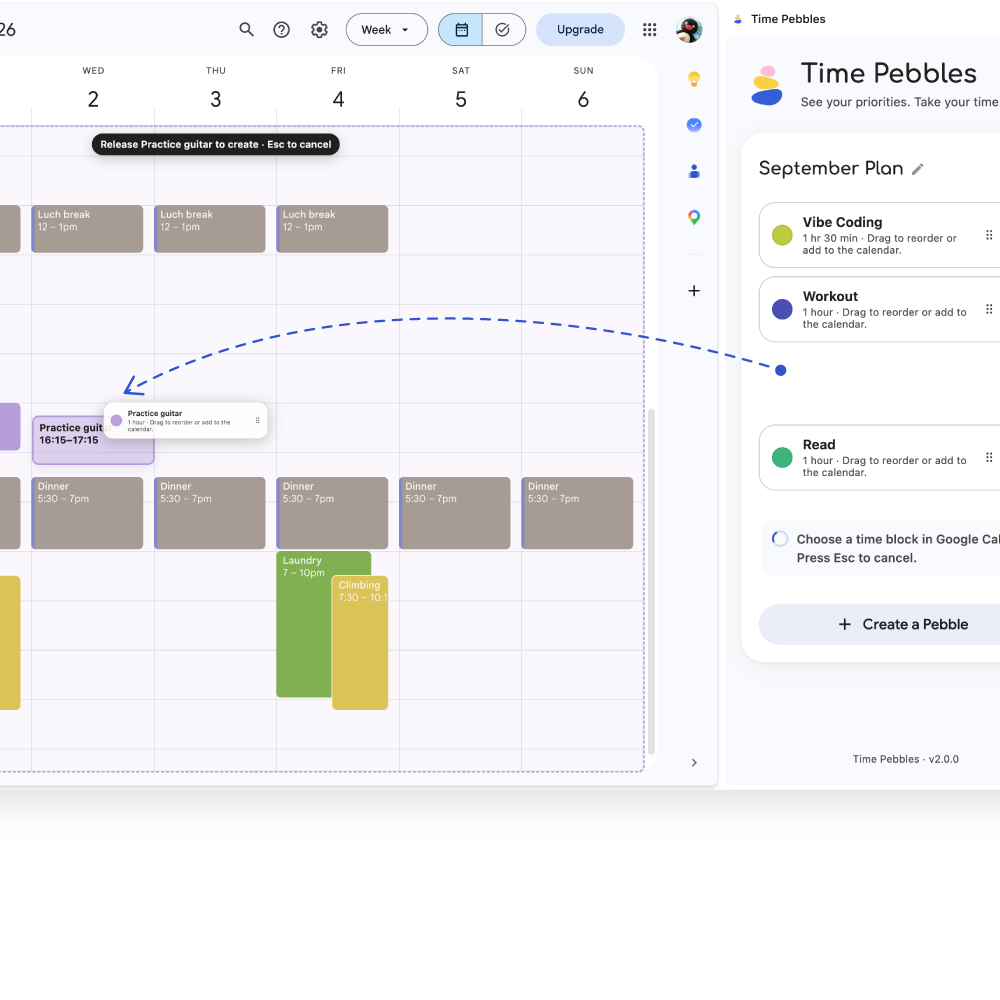
Drag it onto Week view or choose Place on calendar for an exact time.
See it in motion
Keep a Pebble visible, then place it in an open part of your week. You choose the moment; it becomes a real Calendar event.
Trust, without the fine-print fog
Time Pebbles asks for only the access it needs, only after you choose to connect.
Read the full privacy policyCalendar access is requested only after you select Connect Google Calendar.
Your library and recent placement records are stored locally in your current Chrome profile.
A Calendar event follows an explicit drag, click, or placement choice.
No advertising, marketing trackers, or developer-operated analytics.
Plan without the pressure
Keep priorities visible without locking them into your calendar before you’re ready.
Add Time Pebbles to ChromeChrome 120+ Google Calendar Week view